Projects & Relevant Work

This page brings together individually documented automation projects and Shopify e-commerce support responsibilities, grouped into two tracks — AI Workflow Automation and Shopify E-commerce Support. Both draw on the same backend software-development foundation, even though the day-to-day work and its source material stay separate for each track. Every entry is labeled by how it was completed: employer work, client work, or employer experience.


Animated walkthrough of an n8n invoice-processing workflow, highlighting each node from Gmail intake through AI analysis, Google Drive filing, Gmail organization, confidence review, and final logging
AI AutomationClient Work

AI-Powered Invoice Processing Automation

A client used one centralized Gmail account to receive invoices for several companies and suppliers. Preparing documents for quarterly tax filing in Germany required manually finding, downloading, identifying, renaming, and organizing every invoice—especially cumbersome when forwarded emails contained multiple attachments. I built an active n8n automation that processes every PDF attachment individually, uses Gemini to identify and extract data from invoices, and organizes valid documents across Google Drive, Gmail, and Google Sheets. Duplicate protection, confidence-based review, request-limit handling, and Google Chat error alerts make the process reliable and maintain human oversight when needed.

  • n8n
  • Gmail
  • Google Drive
  • +4
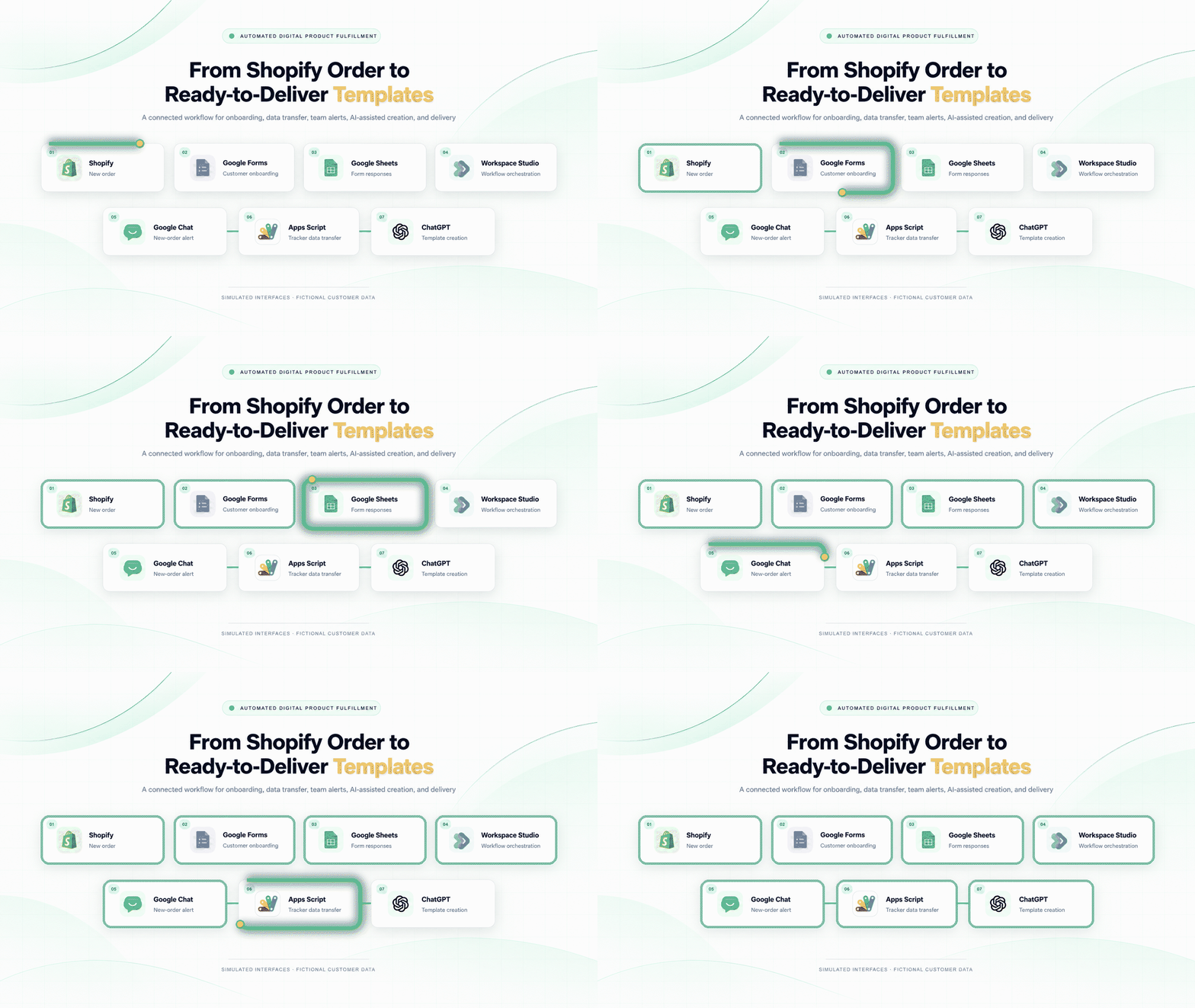
Workflow diagram connecting a Shopify order to Google Forms, Google Sheets, Workspace Studio, Google Chat, Apps Script, and ChatGPT-assisted template creation
Shopify SupportEmployer Experience

Automated Digital Product Fulfillment Workflow

Designed an end-to-end digital product fulfillment workflow connecting Shopify orders, customer onboarding through Google Forms, structured response tracking in Google Sheets, Google Workspace Studio orchestration, Google Chat alerts, Apps Script data transfer, and ChatGPT-assisted template creation and revisions. The workflow reduces duplicate data entry and keeps each order organized from intake through final delivery.

  • Shopify
  • Google Forms
  • Google Sheets
  • +5
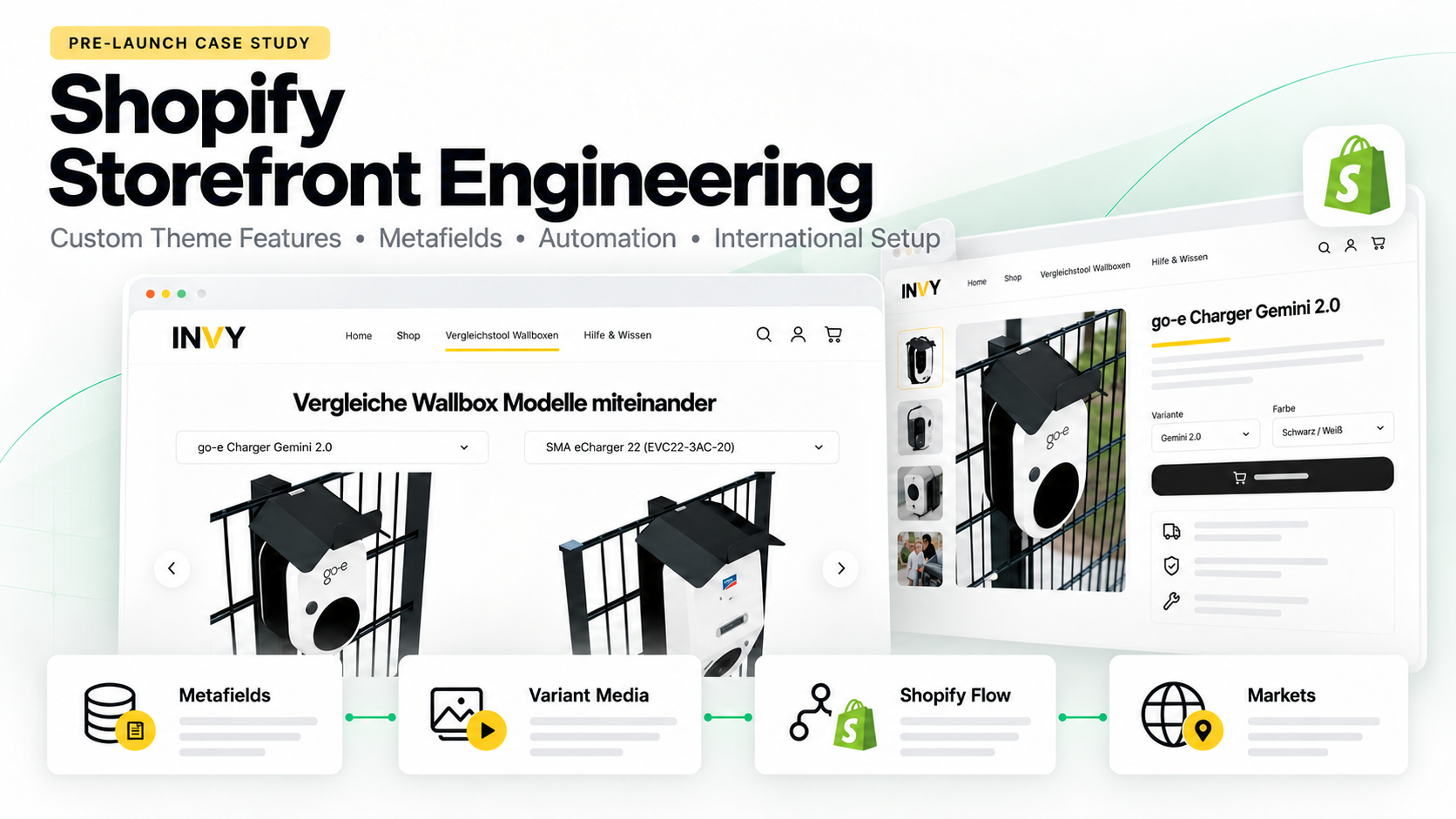
Shopify Storefront Engineering case-study cover featuring the INVY storefront, product comparison, metafields, variant media, Shopify Flow, and international markets
Shopify SupportEmployer Experience

Shopify Storefront Engineering

Pre-launch Shopify storefront engineering for Invy GmbH, covering custom Liquid and JavaScript functionality, structured product data, automated operations, reusable theme components, product merchandising, customer-review integrations, and localized European markets. I built and tested the storefront architecture, catalog workflows, service-page experiences, and merchant-editable controls documented in this case study.

  • Shopify
  • Liquid
  • JavaScript
  • +10

Animated walkthrough of a Make.com financial-report workflow, highlighting modules from completed Asana task detection and Xero API retrieval through CSV generation, attachment upload, and staging-range cleanup
AI AutomationCourse Project

Xero Report-to-Asana Automation

This course project addressed a client-style requirement to automatically attach a Xero financial report to an Asana task after the task was completed. The requested report was not directly available through Xero's API, so the workflow could not simply download and forward the native report. I researched the available Xero API resources, selected the Account Transactions endpoint as the closest source, and built a Make.com scenario that reconstructs the required report as a CSV. The completed file is automatically attached to the corresponding Asana task.

  • Make.com
  • Asana
  • Xero API
  • +4

Animated walkthrough of a Zapier lead-qualification workflow, highlighting steps from Youform lead capture and Apollo.io enrichment through priority routing, Slack alerts, and personalized Gmail outreach
AI AutomationCourse Project

AI Lead Qualification and Outreach Automation

This course project demonstrates how incoming form submissions can be automatically enriched, qualified, and routed according to their sales priority. I built a Zapier workflow that extracts the lead's email domain, retrieves additional company information from Apollo.io, and separates leads into high- and low-priority paths. High-priority leads receive immediate sales attention and personalized outreach, while lower-priority leads are forwarded to the sales team for manual follow-up.

  • Zapier
  • Youform
  • Formatter by Zapier
  • +6
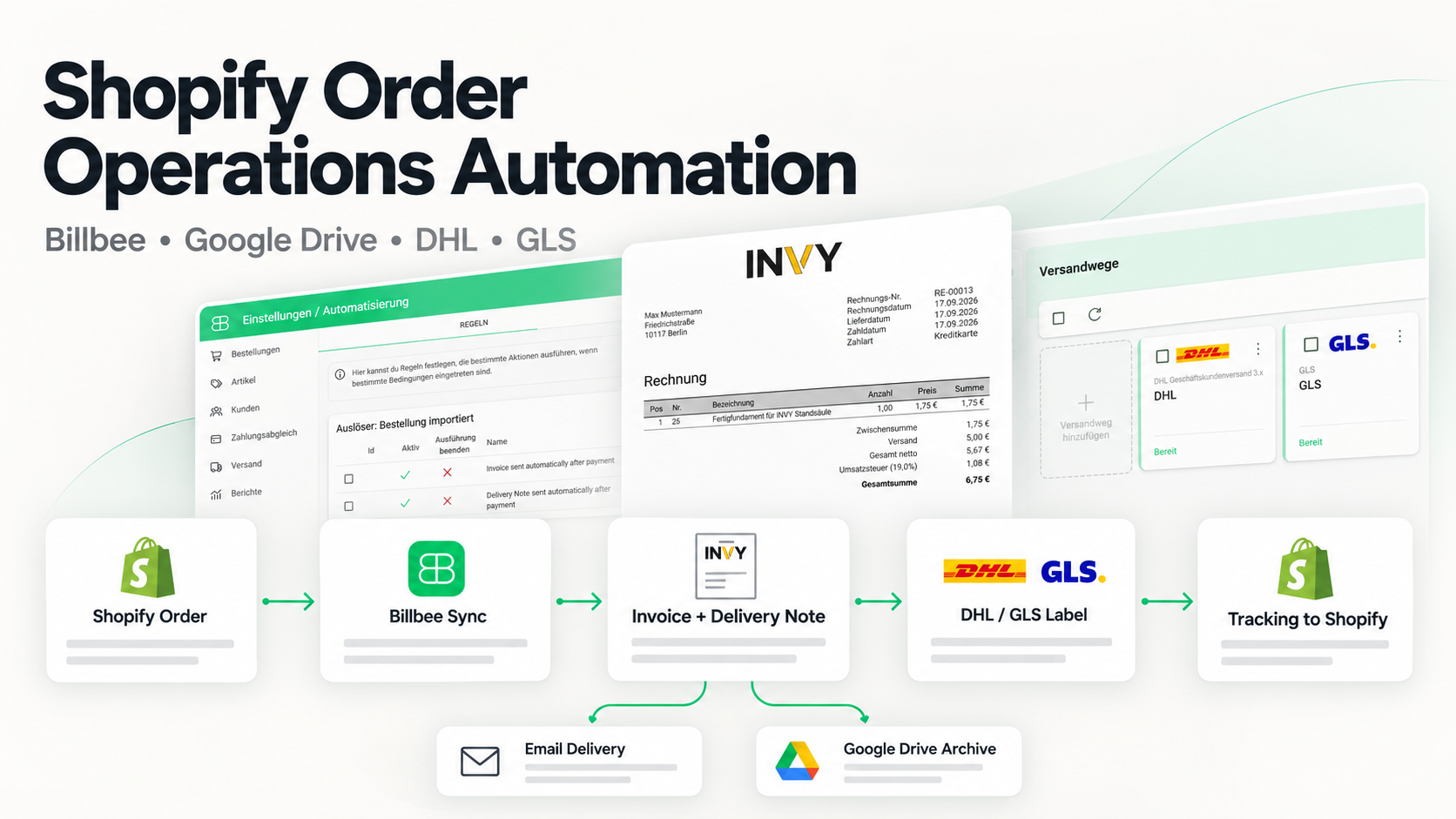
Workflow diagram showing a Shopify order moving through Billbee document automation, Google Drive archiving, DHL or GLS label generation, and tracking synchronization
Shopify SupportEmployer Experience — Invy GmbH

Shopify Order Operations Automation with Billbee

Configured a pre-launch Shopify order-operations system in Billbee that synchronizes orders and inventory, generates branded invoices and delivery notes, sends documents automatically, archives them in Google Drive, and supports DHL and GLS label generation and tracking updates.

  • Shopify
  • Billbee
  • eBay
  • +4

Animated walkthrough of a Zapier CRM workflow, highlighting actions across five Asana deal stages from client setup and follow-up through approval and paid-and-closed outreach
AI AutomationCourse Project

Asana CRM Deal-Stage Automation

This course project demonstrates how Asana can serve as a lightweight CRM while Zapier coordinates the operational work associated with each deal stage. I built a five-path automation that responds to Asana task updates and triggers the appropriate onboarding, follow-up, proposal, or customer communication process. The workflow keeps lead handling consistent while reducing the need to manually monitor every task and remember the next action.

  • Zapier
  • Asana
  • Google Drive
  • +2

Animated walkthrough of a Zapier content-repurposing workflow, highlighting each step from Google Drive video intake through AI transcription, content generation, Facebook publishing, and Google Sheets logging
AI AutomationCourse Project

AI Video Content Repurposing Automation

This course project explored how a single video could be converted into multiple content assets without repeatedly copying information between applications. I built a Zapier workflow that detects new videos in Google Drive, uses AI to create a transcript and two blog-post drafts, and routes the resulting content through separate publishing and review paths. The workflow demonstrates how content teams can create several reusable outputs from one source while maintaining a Google Sheets record for visibility and review.

  • Zapier
  • Google Drive
  • AI by Zapier
  • +2

Animated walkthrough of a Make.com attachment-review workflow, highlighting modules from Gmail monitoring and AI filename generation through Google Drive upload, Google Sheets logging, and email notification
AI AutomationCourse Project

AI Email Attachment Review and Filing Automation

This course project demonstrates how incoming email attachments can be reviewed, renamed, filed, and documented automatically. I built a Make.com scenario that monitors Gmail for supported attachments, uses an AI model to understand each document, and generates a concise filename based on its contents. The renamed file is saved in Google Drive, while its original and updated details are recorded in Google Sheets for traceability.

  • Make.com
  • Gmail
  • AI document analysis
  • +2
Animated walkthrough of an n8n invoice-processing workflow, highlighting each node from Gmail intake through AI analysis, Google Drive filing, Gmail organization, confidence review, and final logging
AI AutomationClient Work

AI-Powered Invoice Processing Automation

Project Overview

A client used one centralized Gmail account to receive invoices for several companies and suppliers. Preparing documents for quarterly tax filing in Germany required manually finding, downloading, identifying, renaming, and organizing every invoice—especially cumbersome when forwarded emails contained multiple attachments. I built an active n8n automation that processes every PDF attachment individually, uses Gemini to identify and extract data from invoices, and organizes valid documents across Google Drive, Gmail, and Google Sheets. Duplicate protection, confidence-based review, request-limit handling, and Google Chat error alerts make the process reliable and maintain human oversight when needed.

Responsibilities

  • Designed and built the complete production workflow in n8n.
  • Configured scheduled Gmail monitoring and attachment-level iteration so every PDF is processed, including multiple attachments within one email.
  • Integrated Gemini for invoice classification and structured extraction of the billed company, supplier, invoice date, total amount, and currency.
  • Created the company-code mapping, standardized filename logic, Google Drive destination rules, and duplicate-file protection.
  • Built the hierarchical Company/Biller Gmail labeling process and configured completed messages to be marked as read.
  • Added a Google Sheets monitoring log with document details, file links, processing status, and manual-review indicators.
  • Implemented confidence-based review routing, controlled wait steps for Google service limits, and Google Chat failure notifications.
  • Tested the workflow using multiple invoice formats, multi-attachment emails, duplicate documents, and PDFs that should not be classified as invoices.

Documented Workflow

  1. Every two hours, n8n checks the centralized Gmail account for qualifying messages containing PDF attachments.
  2. The workflow extracts every PDF and processes each attachment individually, including multiple files forwarded in a single email.
  3. It extracts the document text while preserving the original PDF binary for later filing.
  4. Gemini determines whether the document is an invoice and returns structured invoice data.
  5. Non-invoice documents and uncertain results are excluded from automatic filing or routed for manual review.
  6. For valid invoices, the workflow assigns the client-defined company code and generates a standardized filename and Google Drive destination.
  7. Google Drive is checked for an existing file before a non-duplicate invoice is uploaded.
  8. A monitoring row is added to Google Sheets with the processing time, company, supplier, invoice date, amount, currency, file link, status, and review requirement.
  9. The required Company/Biller Gmail labels are created or reused, applied to the source message, and the message is marked as read.
  10. Results below the required confidence level are flagged for verification of the company code, supplier name, and invoice amount.
  11. A separate error workflow sends the failed execution, affected node, and error details to a Google Chat space for investigation.

Tools & Platforms

  • n8n
  • Gmail
  • Google Drive
  • Google Sheets
  • Gemini
  • Google Chat
  • Google Workspace

This is an active client implementation. Portfolio media uses privacy-safe evidence and does not disclose credentials, private account information, execution URLs, or confidential invoice contents.

Workflow diagram connecting a Shopify order to Google Forms, Google Sheets, Workspace Studio, Google Chat, Apps Script, and ChatGPT-assisted template creation
Shopify SupportEmployer Experience

Automated Digital Product Fulfillment Workflow

Project Overview

Designed an end-to-end digital product fulfillment workflow connecting Shopify orders, customer onboarding through Google Forms, structured response tracking in Google Sheets, Google Workspace Studio orchestration, Google Chat alerts, Apps Script data transfer, and ChatGPT-assisted template creation and revisions. The workflow reduces duplicate data entry and keeps each order organized from intake through final delivery.

Responsibilities

  • Designed an end-to-end workflow connecting Shopify orders with customer onboarding, production tracking, team notifications, content creation, revisions, and delivery.
  • Structured the customer onboarding form and response data captured through Google Forms and Google Sheets.
  • Configured Google Workspace Studio to coordinate the workflow across the connected Google Workspace tools.
  • Created Apps Script logic for transferring customer and order information into the working tracker.
  • Configured Google Chat notifications to alert the team when a new order entered the fulfillment process.
  • Used ChatGPT to assist with template creation and revision work based on the organized customer requirements.
  • Tested and documented the workflow with fictional customer information and privacy-safe demonstration media.

Documented Workflow

  1. A new digital-product order is received through Shopify.
  2. The customer completes the required onboarding information through Google Forms.
  3. The submitted responses are organized in Google Sheets.
  4. Google Workspace Studio coordinates the connected fulfillment steps and information flow.
  5. Google Chat sends a new-order alert to the team.
  6. Google Apps Script transfers the required customer and order data into the production tracker.
  7. ChatGPT assists with creating and revising the ordered template before final delivery through the configured customer communication process.

Tools & Platforms

  • Shopify
  • Google Forms
  • Google Sheets
  • Google Workspace Studio
  • Google Chat
  • Google Apps Script
  • ChatGPT
  • Gmail

This case study documents an employer workflow using simulated interfaces and fictional customer data. No private customer records, credentials, order identifiers, internal URLs, or confidential store information are shown.

Shopify Storefront Engineering case-study cover featuring the INVY storefront, product comparison, metafields, variant media, Shopify Flow, and international markets
Shopify SupportEmployer Experience

Shopify Storefront Engineering

Project Overview

Pre-launch Shopify storefront engineering for Invy GmbH, covering custom Liquid and JavaScript functionality, structured product data, automated operations, reusable theme components, product merchandising, customer-review integrations, and localized European markets. I built and tested the storefront architecture, catalog workflows, service-page experiences, and merchant-editable controls documented in this case study.

Responsibilities

  • Developed custom Liquid sections, blocks, snippets, and JSON templates.
  • Extended storefront functionality with JavaScript and responsive CSS.
  • Created and maintained product listings, variants, collections, metafields, and metaobjects.
  • Built product comparison, bundle-pricing, variant-media, and collection-filtering functionality.
  • Configured reusable theme components, service-page sections, and merchant-editable controls.
  • Configured Shopify Flow, Shopify Markets, domains, languages, currencies, email marketing, and review integrations.
  • Tested storefront interactions, responsive layouts, theme-editor controls, and pre-launch workflows.

Documented Workflow

  1. Defined the storefront, catalog, service-page, localization, and operational requirements.
  2. Structured product and collection data using variants, tags, metafields, and metaobjects.
  3. Developed and configured the custom storefront features and reusable theme components.
  4. Connected and configured automation, translation, email-marketing, and review applications.
  5. Tested the customer-facing experience, administrative controls, responsive behavior, and international market configuration.
  6. Prepared privacy-safe storefront and Shopify Admin evidence for the portfolio case study.

Tools & Platforms

  • Shopify
  • Liquid
  • JavaScript
  • CSS
  • JSON Templates
  • Metafields
  • Metaobjects
  • Shopify Flow
  • Shopify Markets
  • Shopify Email
  • Judge.me
  • Google Reviews
  • Hextom Translate & Currency

Feature Breakdown

Feature 01

Metafield-Driven Product Comparison

Problem

The store’s technically complex wallbox products required a clearer way for prospective customers to compare models without navigating between multiple product pages.

Solution

I built a Shopify comparison interface that allows two wallbox models to be selected independently and presents their product media, pricing, purchase links, embedded videos, and technical specifications together.

How I built it

I used structured Shopify product data and metafields instead of hard-coded comparison content. This keeps the feature scalable and allows the merchant to maintain product information through Shopify Admin without rewriting the section.

Result

The comparison experience has been implemented and prepared for launch. It enables prospective customers to evaluate two products within one interface while allowing the merchant to manage the underlying comparison information through Shopify’s product-management workflow.

INVY storefront comparison interface showing two wallbox products with independent selectors and technical information

Feature 02

Dynamic Bundle Pricing

Problem

Products could be purchased with optional accessories whose quantities affected the combined order value. The storefront needed to communicate these changing costs clearly before an item was added to the cart.

Solution

I created an interactive bundle-pricing experience that updates the displayed purchase total when the main product quantity or optional accessory selections change.

How I built it

I modified the theme’s JavaScript to listen for frontend change events from the main product quantity selector and optional accessory controls. When an input changes, the script reads the updated values, recalculates the combined bundle total, and updates the displayed price without a page reload. I used an event-driven approach so the calculation runs only when a relevant input changes and kept the complete configuration visible inside the main purchasing flow.

Result

The quantity-aware bundle flow has been implemented and tested in the pre-launch storefront. It is prepared to give prospective customers immediate pricing feedback while they configure a product-and-accessory order.

Animated INVY product page demonstrating quantity changes, accessory selection, and recalculated bundle totals

Feature 03

Variant-Specific Product Media

Problem

Products with multiple model and color combinations required different image sets. As more configurations are added, a single product could ultimately contain hundreds of media files. Loading and displaying the entire product media library on the initial page view would create an overwhelming gallery and could unnecessarily increase the amount of media the storefront needs to process.

Solution

I created a variant-specific gallery that displays only the image set assigned to the active model and color combination.

How I built it

I created and configured a variant metafield that stores the image set assigned to each product variant. In the product gallery’s Liquid code, I replaced the standard loop through the entire product.media collection with a loop through the images provided by the active variant’s metafield. I stored the image relationships at variant level rather than relying on filenames or filtering the complete media library, giving the merchant direct control through Shopify Admin.

Result

The variant-specific gallery has been implemented and tested in the pre-launch storefront. It is prepared to show prospective customers a focused set of images corresponding to their selected model and color combination, without presenting the product’s complete media library on first load.

Animated product gallery switching image sets as different wallbox models and colors are selected

Feature 04

Collection-Specific Filters

Problem

Different collections require different filtering options. Displaying every available product filter across all collections would expose irrelevant facets, make the filter interface unnecessarily long, and make it harder for prospective customers to narrow down products in a specific category.

Solution

I created collection-level configuration that hides irrelevant filter groups while allowing the remaining filters to render normally for each collection.

How I built it

I created a collection metafield containing a configurable list of facets to hide. In the collection template’s Liquid code, I check the active collection’s metafield before rendering each filter group and skip filters included in that list. I used metafields rather than hard-coded collection handles so the merchant can change facet visibility through Shopify Admin and support additional collections without adding new theme conditions.

Result

The collection-specific filtering logic has been implemented and tested in the pre-launch storefront. Each collection can present a more relevant set of filters while the merchant retains control over facet visibility through Shopify Admin.

Comparison of storefront collection filters and Shopify collection metafield rules controlling facet visibility

Feature 05

Dedicated Newsletter Page

Problem

The original newsletter popup provided limited space for presenting the offer, collecting additional customer information, and explaining how submitted information would be used. The store required a dedicated experience that could support richer content without interrupting normal storefront browsing.

Solution

I created a custom full-screen Liquid section for a standalone newsletter page with a focused signup experience and richer customer fields.

How I built it

The section supports a merchant-selected image, editable heading and introductory text, configurable colors, optional social links, and an @app block for embedding the newsletter form. I added responsive styling for a split desktop layout and full-width mobile form, plus JavaScript that sequences the form and image reveal while respecting reduced-motion preferences. I used an app block instead of hard-coding a form provider so the layout remains reusable and the form can be managed independently.

Result

The dedicated newsletter page has been implemented and tested in the pre-launch storefront. It is prepared to present the signup offer in a focused layout, support richer customer fields, and provide a responsive experience across desktop and mobile devices.

Animated transition from a newsletter popup to a dedicated branded signup page and its Shopify configuration

Feature 06

Shopify Flow Automation Suite

Problem

Several recurring store-management tasks would require manual attention: monitoring low inventory, welcoming new email subscribers, translating newly created products, and keeping product organization consistent. Handling these activities manually would become increasingly time-consuming as the catalog and customer list grow.

Solution

I configured four event-driven Shopify Flow workflows for low-stock alerts, subscriber onboarding, new-product translation, and manufacturer tagging.

How I built it

The inventory workflow checks whether a variant quantity is five or below and sends an internal email. The subscriber workflow detects new email-marketing subscriptions, applies a customer condition, and triggers a branded Shopify Email message. One product-created workflow sends selected fields to the connected translation app, while another reads the product’s Hersteller metafield and adds it as a tag. I kept each operational responsibility in a separate workflow with its own trigger, condition, and action for easier testing and maintenance.

Result

The four workflows have been configured and tested for the pre-launch store. They are prepared to support inventory awareness, subscriber onboarding, product localization, and consistent manufacturer tagging once regular store activity begins.

Animated overview of four Shopify Flow workflows and their trigger, condition, and action configurations

Feature 07

International Markets and Localization

Problem

The store was being prepared to serve customers across multiple European countries. It required country-specific languages, currencies, domains, and localized URLs without creating and maintaining a separate Shopify store for every market.

Solution

I configured a centralized Shopify Markets structure for 17 country-level markets with localized domains, language subfolders, currencies, and translated storefront content.

How I built it

I assigned the appropriate currency, domain, and language settings to each market, configured the German and international domains, created localized language subfolders, and enabled regional currency presentation including euros and British pounds. I configured the connected translation app for supported product and storefront content, then tested the market selector. I used Shopify Markets instead of separate stores so product and theme management remain centralized while each market receives an appropriate language, currency, and URL structure.

Result

The international market structure has been configured and tested for the pre-launch storefront. The store is prepared to deliver localized regional experiences across the configured European markets while maintaining a centralized Shopify catalog and theme.

Animated Shopify Markets configuration showing active European markets, localized URLs, translations, domains, and storefront selector

Feature 08

Reusable Theme Components

Problem

The theme required payment icons, shipping-provider logos, social links, service content, and localized language labels that needed to remain consistent while still being editable through Shopify’s theme editor. Hard-coding these elements into individual templates would make future updates repetitive and difficult to maintain.

Solution

I developed reusable Liquid components and merchant-editable theme blocks for footer content, service-page structures, and localized language labels.

How I built it

I created separate footer blocks for enabled payment methods, shipping-provider logos, and social icons, with schema settings for icon size, spacing, alignment, monochrome presentation, and individual shipping providers. I added responsive layout rules, reusable service and project blocks, and a language-label snippet that maps locale ISO codes to flags, codes, and native names. I separated the functionality into focused composable blocks so each component can be reused, reordered, configured, or removed without changing unrelated theme code.

Result

The reusable component system has been implemented and tested in the pre-launch theme. It is prepared to give the merchant greater control over footer content, localized language presentation, and service-page components while maintaining consistent responsive behavior.

Animated demonstration of reusable Shopify footer blocks, merchant settings, service components, and localized language interface

Feature 09

Reviews and Customer Trust

Problem

Because the storefront was still being prepared for launch, it needed a structured way to present available product and business reviews at important decision points. The system also needed to support future review collection, moderation, media uploads, and consistent branding.

Solution

I configured complementary Judge.me product-review and Google Business review experiences across product pages, collections, and the homepage.

How I built it

I installed and configured Judge.me for product reviews, moderation, verification indicators, star ratings, customer media, and review-request emails. I added its review widget to the product template and a card carousel to the homepage, then styled the widgets and emails to match the store. I connected the Google Reviews integration to the managed Business Profile and added a storefront business-rating section. I kept product-specific and business-level reviews as separate sources while using configurable app blocks rather than hard-coded review content.

Result

The review system has been configured and tested for the pre-launch storefront. It is prepared to display product and business-level social proof, collect future customer reviews, support photo and video submissions, and provide moderation controls after launch.

Animated review setup showing storefront ratings, Judge.me widgets and administration, branded emails, and Google review integration

Feature 10

Custom Electrical Installation Page

Problem

The store needed to present electrical installation services alongside its ecommerce catalog. A standard Shopify page was not sufficient for organizing multiple service categories, related project examples, detailed project information, and a clear contact path in one manageable experience.

Solution

I created a dedicated Shopify service-page experience with an introduction, service accordions, project sliders and detail modals, and a configurable contact section.

How I built it

I composed the page with a JSON template and three custom Liquid sections. The services section defines service and project block types; Liquid groups each sequence of projects under the service above it and renders each project through a reusable portfolio-card snippet. I added responsive CSS and a JavaScript custom element that initializes and refreshes the slider, responds to accordion and theme-editor events, and cleans up listeners and observers. Modeling the content as theme blocks allows services and projects to be maintained without hard-coding.

Result

The electrical installation page has been implemented and tested in the pre-launch storefront. It is prepared to present the company’s services, showcase related project examples, provide detailed project information, and direct prospective customers to the configured contact channel.

Animated custom Shopify service page showing service accordions, project cards, detail modal, theme controls, and contact section

Feature 11

Product Listings and Collection Merchandising

Problem

The pre-launch store contained a growing catalog of physical products, accessories, wallbox mounting solutions, and digital products. It required a consistent organizational and data structure so products could be assigned to the correct collections, enriched with structured information, and presented in a controlled order without manually rebuilding collection contents whenever products were added.

Solution

I created and organized the Shopify product catalog using structured listings, automated collections, curated ordering, metafields, and reusable metaobject records.

How I built it

I maintained product information, variants, media, tags, and manufacturer data; used product and collection metafields for attributes, collection configuration, and filtering logic; and used metaobjects for reusable records referenced by multiple products. I created automated collections using tags and manufacturer conditions, then reviewed selected products, arranged storefront order, and assigned collection metafields. I separated classification, structured data, and reusable content across tags, metafields, and metaobjects while retaining manual merchandising control where needed.

Result

The product catalog, structured data, and collection architecture have been configured and reviewed for the pre-launch store. The setup is prepared to keep products organized as the catalog grows while supporting reusable content, curated collection pages, and relevant collection-specific filters.

Animated Shopify catalog showing populated product listings, digital-product filtering, automated collections, merchandising order, and storefront results

This project documents a pre-launch Shopify store. The features shown were implemented, configured, and tested, but no live sales or conversion results are claimed. Sensitive URLs, email addresses, phone numbers, and other private information have been blurred or excluded.

Animated walkthrough of a Make.com financial-report workflow, highlighting modules from completed Asana task detection and Xero API retrieval through CSV generation, attachment upload, and staging-range cleanup
AI AutomationCourse Project

Xero Report-to-Asana Automation

Project Overview

This course project addressed a client-style requirement to automatically attach a Xero financial report to an Asana task after the task was completed. The requested report was not directly available through Xero's API, so the workflow could not simply download and forward the native report. I researched the available Xero API resources, selected the Account Transactions endpoint as the closest source, and built a Make.com scenario that reconstructs the required report as a CSV. The completed file is automatically attached to the corresponding Asana task.

Responsibilities

  • Researched Xero's API documentation and available financial-data endpoints.
  • Identified the Account Transactions endpoint as the closest available source for the requested report.
  • Designed and configured the complete Make.com scenario.
  • Connected completed Asana tasks to the report-generation process.
  • Configured the Xero API request and mapped the returned transaction data.
  • Used a router to coordinate data preparation and final file generation.
  • Added an iterator to process individual transaction records.
  • Used Google Sheets as a temporary staging area for normalized report rows.
  • Configured the required delay to allow the transaction rows to finish populating.
  • Retrieved the completed range and converted it into CSV-formatted text.
  • Recreated the relevant structure and column order of the manually downloaded report.
  • Uploaded the generated CSV file to the corresponding Asana task.
  • Cleared the temporary Google Sheets range after the attachment was created.
  • Tested the data retrieval, formatting, attachment, and cleanup sequence in Make.com.

Documented Workflow

  1. The scenario watches Asana for tasks that have been marked complete.
  2. Make.com calls the Xero Account Transactions endpoint to retrieve the closest available transaction-level data for the requested report.
  3. A router coordinates the transaction-processing branch and the final report-generation branch.
  4. The iterator separates the API response into individual transaction records.
  5. Each normalized transaction is added to a temporary Google Sheets range using the required report structure.
  6. A short delay allows all transaction rows to be written before file generation begins.
  7. The scenario reads the populated range from Google Sheets.
  8. A text aggregator converts the prepared rows into a CSV-formatted report.
  9. The generated CSV is uploaded to the completed Asana task as an attachment.
  10. The staging range in Google Sheets is cleared so it is ready for the next report run.

Tools & Platforms

  • Make.com
  • Asana
  • Xero API
  • Google Sheets
  • Iterator
  • Router
  • Text Aggregator

Xero's API did not expose the exact report used in the original process, so the generated CSV reconstructs the required structure from the Account Transactions endpoint rather than downloading Xero's native report. This course project was developed from a client-style automation brief and was not deployed as an active client financial workflow. Any future portfolio demonstration will be clearly labeled as a simulation using fictional financial data.

Animated walkthrough of a Zapier lead-qualification workflow, highlighting steps from Youform lead capture and Apollo.io enrichment through priority routing, Slack alerts, and personalized Gmail outreach
AI AutomationCourse Project

AI Lead Qualification and Outreach Automation

Project Overview

This course project demonstrates how incoming form submissions can be automatically enriched, qualified, and routed according to their sales priority. I built a Zapier workflow that extracts the lead's email domain, retrieves additional company information from Apollo.io, and separates leads into high- and low-priority paths. High-priority leads receive immediate sales attention and personalized outreach, while lower-priority leads are forwarded to the sales team for manual follow-up.

Responsibilities

  • Designed and configured the complete lead-qualification workflow in Zapier.
  • Connected Youform as the lead-capture source.
  • Used Formatter by Zapier to extract the company domain from each submitted email address.
  • Configured a webhook request to enrich the lead through Apollo.io.
  • Mapped the original form submission and enriched company data into the subsequent workflow steps.
  • Created conditional High Priority and Low Priority paths.
  • Configured Google Sheets to record qualified high-priority leads.
  • Added real-time Slack notifications for the sales team.
  • Used AI by Zapier to generate personalized outreach content from the available lead information.
  • Connected Gmail to send the generated outreach to qualified leads.
  • Routed lower-priority leads to the sales team for manual evaluation and follow-up.
  • Tested the enrichment, routing, notification, and email steps during the available Zapier trial environment.

Documented Workflow

  1. The automation begins when a prospect submits a lead form through Youform.
  2. Formatter by Zapier isolates the domain from the submitted email address.
  3. A webhook sends the domain to Apollo.io and retrieves additional company information for qualification.
  4. Zapier Paths applies the configured qualification conditions and assigns the lead to either the High Priority or Low Priority path.
  5. For a high-priority lead, the enriched information is recorded in Google Sheets so the sales team has a structured reference.
  6. Slack sends an immediate alert containing the relevant lead information.
  7. AI by Zapier uses the submitted and enriched information to prepare a customized outreach message.
  8. Gmail sends the generated outreach email directly to the high-priority prospect.
  9. For a low-priority lead, the information is sent to the sales team through Gmail for manual evaluation and follow-up rather than initiating automated outreach.

Tools & Platforms

  • Zapier
  • Youform
  • Formatter by Zapier
  • Webhooks by Zapier
  • Apollo.io
  • Google Sheets
  • Slack
  • AI by Zapier
  • Gmail

This course project was created and tested in a Zapier trial environment. It was not deployed as an active client lead-management system and is no longer accessible through the expired trial account. Any future portfolio demonstration will be clearly labeled as a simulation based on the original workflow screenshot.

Workflow diagram showing a Shopify order moving through Billbee document automation, Google Drive archiving, DHL or GLS label generation, and tracking synchronization
Shopify SupportEmployer Experience — Invy GmbH

Shopify Order Operations Automation with Billbee

Project Overview

Configured a pre-launch Shopify order-operations system in Billbee that synchronizes orders and inventory, generates branded invoices and delivery notes, sends documents automatically, archives them in Google Drive, and supports DHL and GLS label generation and tracking updates.

Responsibilities

  • Connected and authorized Shopify and eBay inside Billbee.
  • Configured automatic order retrieval and bidirectional status synchronization.
  • Validated product matching, imported order data, inventory handling, payment status, fulfillment status, and shipping information.
  • Created and tested four Billbee automation rules for invoice and delivery-note generation and routing.
  • Created separate German email templates for customer invoices and internal delivery notes and configured Gmail as the sending service.
  • Designed separate PDF backgrounds for invoices and delivery notes and configured document layouts, numbering, taxes, payment terms, and legal footer settings.
  • Connected Billbee directly to Google Drive and created an organized archive structure for invoices and delivery notes.
  • Connected the company's DHL and GLS business shipping accounts, configured shipping products and mappings, and tested label generation and tracking synchronization.

Documented Workflow

  1. A customer places an order in Shopify and selects a shipping option.
  2. Billbee retrieves the order through the authorized Shopify connection and matches the imported product with its Billbee record.
  3. Billbee receives the order, customer, payment, fulfillment, inventory, and shipping information.
  4. When the imported order meets the paid-order condition, Billbee generates the invoice and delivery note.
  5. The invoice is emailed automatically to the customer, while the delivery note is emailed to the client for fulfillment.
  6. Both generated documents are archived in their dedicated Google Drive folders.
  7. The imported Shopify shipping method determines whether DHL or GLS is used, and Billbee generates the appropriate shipping label.
  8. The resulting tracking information synchronizes back to Shopify.

Tools & Platforms

  • Shopify
  • Billbee
  • eBay
  • Gmail
  • Google Drive
  • DHL
  • GLS

Feature Breakdown

Feature 01

Multichannel Commerce Connection

Problem

Shopify orders, eBay orders, order statuses, and inventory information needed to be handled through a centralized operational system. Managing each sales channel independently would create fragmented order handling and increase the need to transfer information manually between platforms.

Solution

I connected Shopify and eBay to Billbee so the company could retrieve orders through one operational workspace and synchronize relevant status information with the connected sales channels.

How I built it

I personally authorized both channel connections inside Billbee, configured scheduled automatic order retrieval, and enabled order-status synchronization between Billbee and the connected platforms. For Shopify, I reviewed the available connection settings and confirmed that imported orders could supply Billbee with the operational information needed for downstream processing.

Result

The pre-launch system now has a tested multichannel foundation in which Shopify and eBay orders can enter Billbee automatically instead of requiring manual order creation. The Shopify connection serves as the starting point for the document and fulfillment workflow demonstrated in the following chapters.

Animated Billbee configuration showing connected Shopify and eBay channels, automatic order retrieval, and status synchronization settings

Feature 02

Automated Shopify Order Synchronization

Problem

An imported order must retain enough information for invoicing, inventory handling, shipping, and fulfillment. Missing or incorrectly matched data would require staff to recreate or correct the order manually before it could be processed.

Solution

I configured and tested the Shopify-Billbee connection so Shopify orders are imported automatically and matched with the corresponding Billbee products.

How I built it

I used controlled test orders to verify the complete transfer. Billbee retained the external Shopify order number and imported the corresponding product, quantity, customer and delivery details, selected shipping method, pricing, payment status, and fulfillment information. I also verified product matching, inventory adjustment, payment-status synchronization, fulfillment-status synchronization, and the imported shipping method. The connection handles the transfer automatically; my responsibility was configuring the connection and validating that its mappings and synchronized information supported the operational workflow correctly.

Result

A Shopify order can enter Billbee as a usable operational record without being recreated manually. The synchronized record provides the information required for document generation, cloud archiving, and shipment preparation.

Animated comparison of Shopify test order 1079 and its matching Billbee order, product, inventory, and shipping information

Feature 03

Automated Order-Document Workflow

Problem

Creating an invoice and delivery note manually for every imported order would be repetitive and could lead to delayed documents, inconsistent routing, or duplicate generation.

Solution

I created a four-rule Billbee automation chain that generates and distributes the required documents when an imported order meets the paid-order condition.

How I built it

The first rule responds to a paid order imported through a shop connection, creates the invoice, saves the PDF, triggers email delivery, and checks that an invoice has not already been created. The second rule responds to the invoice email trigger and sends the document to the customer through the designated email template. The third rule creates and stores the delivery note for the same qualifying imported order, triggers its email delivery, and prevents duplicate creation. The fourth rule sends the delivery note to the client's designated internal address. I created and tested all four rules; they run without a manual approval step and do not change the order status.

Result

A qualifying Shopify order can trigger invoice and delivery-note creation and routing without manual document preparation. Duplicate-prevention conditions protect the workflow from generating the same document more than once.

Animated workflow showing a Shopify order synchronizing to Billbee, followed by automatic invoice and delivery-note creation, email delivery, Google Drive archiving, and the supporting Billbee automation rules

Feature 04

Branded Invoice and Delivery-Note System

Problem

Billbee could generate the required document data, but its standard footer controls were too limited to reproduce the desired branded and legal footer layout.

Solution

I combined Billbee's dynamic document generation with separate custom PDF backgrounds for invoices and delivery notes.

How I built it

I designed two different PDF backgrounds, each containing the required footer treatment for its document type, and assigned them to the corresponding Billbee layouts. Billbee dynamically inserts the customer details, document numbers, dates, product descriptions, quantities, prices, shipping costs, taxes, totals, payment and shipping information, and delivery-note barcode. I also configured document numbering, taxes, payment terms, legal footer information, typography, spacing, and the relevant layout settings.

Result

Billbee can generate operational invoice and delivery-note PDFs automatically while maintaining a controlled branded presentation that was not possible through its standard footer settings alone.

Animated comparison of privacy-safe branded invoice and delivery-note PDFs followed by their separate Billbee layout and PDF-background configurations

Feature 05

Automated Email Delivery and Cloud Archiving

Problem

Generating documents was only part of the process. The invoice still needed to reach the customer, the delivery note needed to reach the client, and both documents needed to be filed consistently for later access.

Solution

I created separate email-delivery templates and connected Billbee directly to Google Drive for automatic document archiving.

How I built it

I wrote German email templates for the customer invoice and internal delivery note and used Billbee's {OrderNumber} placeholder to identify the relevant order. Gmail serves as the sending service, and the corresponding document PDF is attached automatically when the email rule runs. I configured Google Drive as a Billbee cloud-storage destination and created separate folders for invoices and delivery notes. Billbee saves the generated PDFs with structured filenames, producing an organized document history without requiring staff to download, rename, and upload each file manually.

Result

Generated invoices and delivery notes can be distributed and archived automatically. The workflow creates a consistent record of test documents and reduces repetitive document-handling steps in the pre-launch operation.

Animated workflow and configuration evidence showing automatic invoice and delivery-note emails, Gmail delivery, Google Drive connection, dedicated folders, and archived test documents

Feature 06

DHL and GLS Fulfillment Integration

Problem

Customer-facing Shopify shipping choices needed to connect with the correct business shipping provider during fulfillment. Without mapped provider services, staff would have to interpret the selected method and recreate shipment information manually.

Solution

I connected the company's DHL and GLS business shipping accounts to Billbee and mapped the imported Shopify shipping methods to the appropriate provider products.

How I built it

I configured DHL Geschäftskundenversand 3.x with DHL Paket and DHL Paket International, and configured GLS BusinessParcel/EuroBusinessParcel as GLS Standardversand. Shopify presents the available shipping options to the customer, and the selected method is imported with the order into Billbee. The mappings determine the correct provider and service so Billbee can generate the shipping label and synchronize the resulting tracking information back to Shopify. I personally configured both integrations and tested label generation and shipment processing with controlled orders.

Result

The pre-launch fulfillment workflow can carry the customer's Shopify shipping choice into Billbee, prepare the appropriate DHL or GLS label, and return tracking information to Shopify through the connected system.

Animated fulfillment workflow showing Shopify shipping-method selection, Billbee carrier mapping, DHL and GLS service configuration, label generation, and tracking synchronization back to Shopify

This case study documents employer work completed for Invy GmbH. The Shopify storefront remains in pre-launch development, and the demonstrated workflow was configured and tested with controlled test orders and fictional customer data. No live sales, conversion, fulfillment-speed, or revenue improvements are claimed. Private business details, recipient addresses, account identifiers, credentials, banking information, tax information, internal URLs, and shipping-account details will be removed or permanently obscured before publication.

Animated walkthrough of a Zapier CRM workflow, highlighting actions across five Asana deal stages from client setup and follow-up through approval and paid-and-closed outreach
AI AutomationCourse Project

Asana CRM Deal-Stage Automation

Project Overview

This course project demonstrates how Asana can serve as a lightweight CRM while Zapier coordinates the operational work associated with each deal stage. I built a five-path automation that responds to Asana task updates and triggers the appropriate onboarding, follow-up, proposal, or customer communication process. The workflow keeps lead handling consistent while reducing the need to manually monitor every task and remember the next action.

Responsibilities

  • Designed and configured the complete multi-path workflow in Zapier.
  • Connected Asana as the CRM-style source of lead and deal-stage information.
  • Created five conditional paths for the Ready to Start, No Response, Quoted, Approved, and Paid & Closed stages.
  • Mapped Asana task information into Google Drive, Gmail, and AI-generated communications.
  • Configured Google Drive folder creation for new client work.
  • Added automatic Asana task creation for the next operational step.
  • Built scheduled email follow-up sequences using Delay by Zapier.
  • Added Gmail searches and filters to prevent unnecessary follow-up messages.
  • Configured AI by Zapier to generate personalized customer communications.
  • Created automated welcome and recommendation emails.
  • Tested the routing conditions and actions during the available Zapier trial environment.

Documented Workflow

  1. The automation begins whenever a tracked task is updated in Asana.
  2. Zapier Paths checks the updated status and routes the task into one of five workflows.
  3. For Ready to Start, a client folder is created in Google Drive, followed by a new Asana task for the next production activity.
  4. For No Response, Gmail sends an initial lead follow-up. After a configured delay, the workflow searches for a relevant response and applies a filter before sending a second follow-up.
  5. For Quoted, Gmail sends a quote follow-up. After a delay, the workflow checks for a response and sends a second quote reminder only when the filter conditions are met.
  6. For Approved, the automation locates the client's Google Drive folder and required file, uses AI by Zapier to prepare personalized content, and sends a welcome email through Gmail.
  7. For Paid & Closed, AI by Zapier generates a personalized recommendation message, which is then delivered to the customer through Gmail.

Tools & Platforms

  • Zapier
  • Asana
  • Google Drive
  • Gmail
  • AI by Zapier

This course project was created and tested in a Zapier trial environment. It was not deployed as an active client CRM and is no longer accessible through the expired trial account. Any future portfolio demonstration will be clearly labeled as a simulation based on the original workflow screenshot.

Animated walkthrough of a Zapier content-repurposing workflow, highlighting each step from Google Drive video intake through AI transcription, content generation, Facebook publishing, and Google Sheets logging
AI AutomationCourse Project

AI Video Content Repurposing Automation

Project Overview

This course project explored how a single video could be converted into multiple content assets without repeatedly copying information between applications. I built a Zapier workflow that detects new videos in Google Drive, uses AI to create a transcript and two blog-post drafts, and routes the resulting content through separate publishing and review paths. The workflow demonstrates how content teams can create several reusable outputs from one source while maintaining a Google Sheets record for visibility and review.

Responsibilities

  • Designed and configured the complete multi-step workflow in Zapier.
  • Connected Google Drive as the source for newly uploaded videos.
  • Added filtering conditions to prevent unsuitable files from continuing through the workflow.
  • Configured AI by Zapier to transcribe each uploaded video.
  • Created a second AI step that transforms the transcript into two blog-post drafts.
  • Used Looping by Zapier to process each generated content item separately.
  • Created conditional paths for publishing and review.
  • Connected Facebook Pages for qualifying social content.
  • Configured Google Sheets to record source files, generated content, and processing results.
  • Mapped information between Google Drive, the AI steps, Facebook Pages, and Google Sheets.
  • Tested the workflow during the available Zapier trial environment.

Documented Workflow

  1. The automation begins when a new video file is added to the designated Google Drive folder.
  2. A Zapier filter checks whether the uploaded file meets the conditions required for processing.
  3. Google Sheets records the incoming file so the content-processing run can be tracked.
  4. AI by Zapier converts the uploaded video into a text transcript.
  5. The workflow adds the relevant transcription information to Google Sheets.
  6. AI by Zapier uses the transcript to produce two blog-post drafts from the original video.
  7. Looping by Zapier separates the generated drafts so each content item can be handled individually.
  8. Zapier Paths evaluates each item and directs it to the appropriate destination.
  9. One path creates a post on Facebook Pages and records the publishing result in Google Sheets.
  10. The alternate path saves the generated content in Google Sheets for review rather than publishing it automatically.

Tools & Platforms

  • Zapier
  • Google Drive
  • AI by Zapier
  • Google Sheets
  • Facebook Pages

This course project was created and tested in a Zapier trial environment. It was not deployed as an active client workflow and is no longer accessible through the expired trial account. Any future portfolio demonstration will be clearly identified as a simulation based on the original workflow screenshot.

Animated walkthrough of a Make.com attachment-review workflow, highlighting modules from Gmail monitoring and AI filename generation through Google Drive upload, Google Sheets logging, and email notification
AI AutomationCourse Project

AI Email Attachment Review and Filing Automation

Project Overview

This course project demonstrates how incoming email attachments can be reviewed, renamed, filed, and documented automatically. I built a Make.com scenario that monitors Gmail for supported attachments, uses an AI model to understand each document, and generates a concise filename based on its contents. The renamed file is saved in Google Drive, while its original and updated details are recorded in Google Sheets for traceability.

Responsibilities

  • Designed and configured the complete Make.com scenario.
  • Connected Gmail as the source for incoming emails and attachments.
  • Added file-type filtering for PDF, DOCX, XLSX, and CSV documents.
  • Configured the workflow to retrieve and process individual attachments.
  • Integrated AI document analysis using a supported model such as ChatGPT or Claude.
  • Created instructions for reviewing document content and producing a short, descriptive filename.
  • Preserved the appropriate file extension when generating the new filename.
  • Mapped the renamed attachment to the designated Google Drive folder.
  • Configured Google Sheets logging for the processing timestamp, original filename, new filename, and file type.
  • Added an optional Gmail notification summarizing the completed processing run.
  • Tested the workflow with different supported document types and attachment names.

Documented Workflow

  1. Make.com watches Gmail for new messages that may contain attachments.
  2. The workflow lists the files attached to each qualifying email.
  3. Filters allow supported PDF, DOCX, XLSX, and CSV files to continue through the scenario.
  4. Each attachment is uploaded to the configured AI service so its contents can be reviewed.
  5. The AI produces a short filename that describes the document while retaining its correct file extension.
  6. The file is saved under its new name in the designated Google Drive folder.
  7. Google Sheets receives a row containing the timestamp, original filename, generated filename, and document type.
  8. Gmail can send a summary email after the processing batch is completed.

Tools & Platforms

  • Make.com
  • Gmail
  • AI document analysis
  • Google Drive
  • Google Sheets

The quality of the generated filename depends on how accurately the configured AI model can interpret the document. A production version should include filename sanitization, duplicate protection, failure handling, and a manual-review route for unsupported, unreadable, or uncertain documents. This course project was created and tested in a Make.com trial environment and was not deployed as an active client document-management workflow. Any future portfolio demonstration will be clearly labeled as a simulation using fictional documents and email data.

Animated walkthrough of an n8n invoice-processing workflow, highlighting each node from Gmail intake through AI analysis, Google Drive filing, Gmail organization, confidence review, and final logging
Current production workflow shown with a slower sequential highlight across all 42 visible n8n nodes.
Workflow diagram connecting a Shopify order to Google Forms, Google Sheets, Workspace Studio, Google Chat, Apps Script, and ChatGPT-assisted template creation
Privacy-safe overview of the connected digital-product fulfillment workflow using simulated interfaces and fictional customer data.
Shopify Storefront Engineering case-study cover featuring the INVY storefront, product comparison, metafields, variant media, Shopify Flow, and international markets
Pre-launch Shopify storefront engineering completed for INVY.
Animated walkthrough of a Make.com financial-report workflow, highlighting modules from completed Asana task detection and Xero API retrieval through CSV generation, attachment upload, and staging-range cleanup
Original Make.com course-project scenario shown with a sequential highlight across all 10 configured modules.
Animated walkthrough of a Zapier lead-qualification workflow, highlighting steps from Youform lead capture and Apollo.io enrichment through priority routing, Slack alerts, and personalized Gmail outreach
Original Zapier course-project workflow shown with a sequential highlight across all 11 configured steps.
Workflow diagram showing a Shopify order moving through Billbee document automation, Google Drive archiving, DHL or GLS label generation, and tracking synchronization
Pre-launch Shopify order-operations workflow configured and tested through Billbee.
Animated walkthrough of a Zapier CRM workflow, highlighting actions across five Asana deal stages from client setup and follow-up through approval and paid-and-closed outreach
Original Zapier course-project workflow shown with a sequential highlight across all 25 configured actions.
Animated walkthrough of a Zapier content-repurposing workflow, highlighting each step from Google Drive video intake through AI transcription, content generation, Facebook publishing, and Google Sheets logging
Original Zapier course-project workflow shown with a sequential highlight across all 13 configured steps.
Animated walkthrough of a Make.com attachment-review workflow, highlighting modules from Gmail monitoring and AI filename generation through Google Drive upload, Google Sheets logging, and email notification
Original Make.com course-project scenario shown with a sequential highlight across all seven configured modules.

Automated Digital Product Fulfillment Workflow Demonstration

Demonstration of the fulfillment process from Shopify order intake through onboarding, orchestration, production tracking, AI-assisted template creation, and delivery.

INVY storefront comparison interface showing two wallbox products with independent selectors and technical information
Animated INVY product page demonstrating quantity changes, accessory selection, and recalculated bundle totals
Animated product gallery switching image sets as different wallbox models and colors are selected
Comparison of storefront collection filters and Shopify collection metafield rules controlling facet visibility
Animated transition from a newsletter popup to a dedicated branded signup page and its Shopify configuration
Animated overview of four Shopify Flow workflows and their trigger, condition, and action configurations
Animated Shopify Markets configuration showing active European markets, localized URLs, translations, domains, and storefront selector
Animated demonstration of reusable Shopify footer blocks, merchant settings, service components, and localized language interface
Animated review setup showing storefront ratings, Judge.me widgets and administration, branded emails, and Google review integration
Animated custom Shopify service page showing service accordions, project cards, detail modal, theme controls, and contact section
Animated Shopify catalog showing populated product listings, digital-product filtering, automated collections, merchandising order, and storefront results
Animated Billbee configuration showing connected Shopify and eBay channels, automatic order retrieval, and status synchronization settings
Animated comparison of Shopify test order 1079 and its matching Billbee order, product, inventory, and shipping information
Animated workflow showing a Shopify order synchronizing to Billbee, followed by automatic invoice and delivery-note creation, email delivery, Google Drive archiving, and the supporting Billbee automation rules
Animated comparison of privacy-safe branded invoice and delivery-note PDFs followed by their separate Billbee layout and PDF-background configurations
Animated workflow and configuration evidence showing automatic invoice and delivery-note emails, Gmail delivery, Google Drive connection, dedicated folders, and archived test documents
Animated fulfillment workflow showing Shopify shipping-method selection, Billbee carrier mapping, DHL and GLS service configuration, label generation, and tracking synchronization back to Shopify